Aesthetic Widgets and Wallpapers for iPhone
Wallby builds Home Screen and Lock Screen widgets, wallpapers and custom app icons on your iPhone, then shows you the exact taps that put them on your screen. No account, nothing uploaded.

Free on the App Store · iPhone, iOS 17.0 or later · the free version shows ads, Wallby Pro removes them
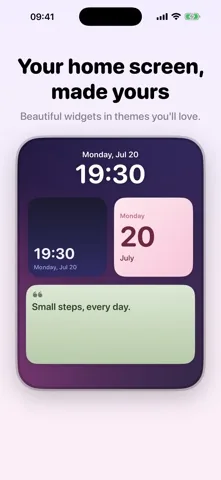
Widgets
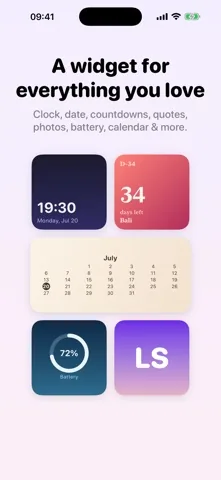
Eight types, three Home Screen sizes and three Lock Screen shapes. Clock, date, countdown, quote, photo, battery, calendar and monogram, all free.
Wallpapers
Thirteen designs across four packs, drawn by the app at your device's screen size and saved to Photos in full quality.
App icons
Themed 512 pixel icons built from a gradient and a symbol, ready for the Shortcuts route that iOS actually supports.
Widgets
Eight widgets, none of them behind a paywall
Wallby never locks a whole widget type. What you pay for is the extra themes and packs, not the ability to make a countdown.
- Clock, three styles
- Date
- Countdown
- Quote
- Photo
- Battery
- Calendar
- Monogram
Three Home Screen sizes
Small, Medium and Large. Every type works in all three.
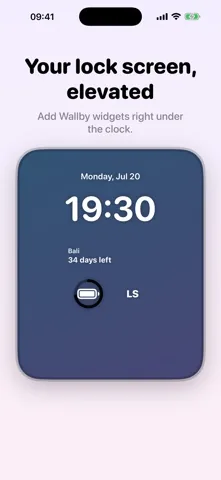
Three Lock Screen shapes
Rectangular, Circular and Inline. Wallby offers only the content that stays readable in each shape, which is why the photo widget is a Home Screen widget. See Lock Screen widgets.
Themes
Twelve themes, four type styles
A theme in Wallby is a background, a matching text color and a font design, picked together so the result is readable rather than just colorful.
Free themes
Cream theme
Midnight theme
Sage theme
Mono theme
Blush theme
Ocean theme
Wallby Pro themes
Aurora theme
Sunset theme
Noir Gold theme
Cotton Sky theme
Matcha theme
Grape Soda theme
Type styles are Rounded, Modern, Serif and Mono. More on pairing them in aesthetic widgets for iPhone.
Wallpapers
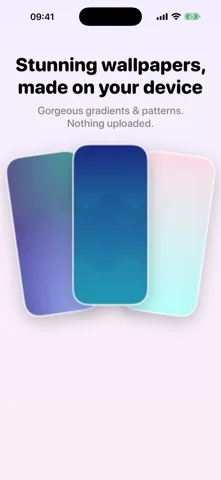
Thirteen wallpapers, drawn on your iPhone
Nothing is downloaded and nothing is uploaded. The app renders gradients, meshes, stripes, dots, waves and grids with Core Graphics at your screen's size, so what you preview is what lands in Photos.
Peach
Dusk
Mint
Plum Glow
Ink
Paper
Dotted
Wallby Pro packs
Borealis
Nebula
Coral Reef
Silk Waves
Sunset Stripes
Blueprint
Full detail, including how to actually set one: make your own iPhone wallpaper.
The honest part
How placement really works on iOS
iOS does not let any app place a widget, set a wallpaper or replace an app icon for you. Wallby does everything up to that final tap and then tells you which taps they are.
Add a widget
- Save your design in Wallby and give it a name.
- Touch and hold the Home Screen, then tap Edit and the plus button.
- Search for Wallby and add the size you want.
- Touch and hold the placed widget, tap Edit Widget, and pick your design by name.
Set a wallpaper
- Tap Save to Photos in Wallby.
- Open Settings, then Wallpaper, then Add New Wallpaper.
- Choose Photos and pick the image Wallby saved.
- Set it for the Home Screen, the Lock Screen or both.
Use a custom icon
- Save the icon to Photos in Wallby.
- In Shortcuts, create a new shortcut with the Open App action.
- Tap Share, then Add to Home Screen.
- Tap the icon image, choose Photo, and pick the icon Wallby saved.
Wallby never shows a fake "Applied!" screen. If you have used a customization app that seemed to do it all for you, what it actually did was save an image and hope you would work out the rest.
What it looks like
Pricing
What Wallby costs
Free
- All eight widget types, in all six placements
- Six themes: Cream, Midnight, Sage, Mono, Blush and Ocean
- Seven wallpapers from the Gradients and Minimal packs
- Custom app icons, all 18 icon symbols
- A small Wallby mark on what you save
- Advertising, with the caps listed below
Wallby Pro
4.99 USD per week or 29.99 USD per year in the United States. Prices differ by country and the App Store shows yours before you buy.
- No advertising at all: with Pro the ad kit never starts
- No watermark on widgets or wallpapers
- Six more themes: Aurora, Sunset, Noir Gold, Cotton Sky, Matcha and Grape Soda
- Six more wallpapers from the Aurora and Patterns packs
Wallby Pro is an auto renewing subscription. Payment is charged to your Apple Account. It renews automatically unless you cancel at least 24 hours before the current period ends. Manage or cancel it in your App Store account settings.
What the advertising does. A banner sits at the bottom of the widget studio, the wallpaper studio and the settings screen. A full screen ad can appear at most once per app session, never during your first three saves, never closer than three counted actions apart and never less than three minutes apart. The ads come from Google's ad kit, which asks for your consent before it loads anything. Wallby Pro removes advertising entirely: for a subscriber the ad kit is never started at all.
Privacy
What stays on your iPhone
There is no account and no login. Wallby has no server of its own, so your widgets, wallpapers, presets and settings are stored on the device and in the app group the widget reads from.
The photo widget and the wallpaper studio ask only for permission to add images to your Photos library. Photos you pick are processed on the device and are never uploaded.
The free version does load advertising over the network through Google's ad kit, which asks for your consent first and offers a privacy choices screen inside the app. There is no analytics or attribution kit beyond that. The full detail is in the privacy policy.
Frequently asked questions
Is Wallby free?
Yes. Wallby is a free download and every widget type, every widget size and every Lock Screen slot works without paying. Six of the twelve themes and seven of the thirteen wallpapers are free as well.
The free version shows advertising and puts a small Wallby mark on the widgets and wallpapers you save. The optional Wallby Pro subscription removes both and unlocks the remaining themes and wallpaper packs.
Does Wallby show ads?
Yes. This is the part a lot of customization apps are vague about, so here it is plainly. A banner sits at the bottom of the widget studio, the wallpaper studio and the settings screen, and a full screen ad can appear at most once per app session.
That full screen ad never appears during your first three saves, never closer than three counted actions apart and never less than three minutes apart. Advertising is loaded by Google's ad kit, which asks for your consent first. Wallby Pro removes it completely: for a subscriber the ad kit is never started.
How much does Wallby Pro cost?
Wallby Pro is an auto renewing subscription offered weekly or yearly. In the United States it is 4.99 USD per week or 29.99 USD per year. Prices differ by country and the App Store shows your price before you confirm anything.
Payment is charged to your Apple Account. The subscription renews automatically unless you cancel at least 24 hours before the current period ends, and you can manage or cancel it in your App Store account settings.
Can Wallby set my wallpaper or place a widget for me?
No, and no app on iOS can. There is no API that lets an app place a widget, change your wallpaper or replace another app's icon. Any app that claims otherwise is showing you a fake confirmation.
Wallby does everything up to that last step: it draws the widget, renders the wallpaper at your screen size and saves it to Photos, then shows you the exact taps. Adding a widget takes about ten seconds.
What kinds of widgets can I make?
Eight types: clock, date, countdown, quote, photo, battery, calendar and monogram. The clock comes in three styles, Digital, Stacked and Minimal, and uses the system time so it never freezes on an old value.
Every type is available to free users. Widgets come in three Home Screen sizes and three Lock Screen shapes, and each design you save gets its own name so the widget picker does not show you a list of identical entries.
Does Wallby upload my photos or collect data?
No. There is no account, no login and no analytics or tracking kit in the app. Photos you pick for a photo widget or a wallpaper are processed on your iPhone, and Wallby asks only for permission to add images to your library, not to read it.
The one part of Wallby that talks to the network is the advertising, which is loaded by Google's ad kit in the free version and asks for your consent first. Wallby Pro removes it.
Which iPhones does Wallby run on?
Wallby is an iPhone app and needs iOS 17.0 or later. The current version is 1.1.0.
Why do custom app icons open through Shortcuts?
Because that is the only mechanism iOS gives anyone. A custom icon on the Home Screen is a Shortcuts bookmark that runs an Open App action, not a real replacement of the app's icon.
The practical cost is that these icons do not show notification badges. That is an iOS limitation rather than a bug in Wallby, and it is worth knowing before you rebuild a whole Home Screen.
Build your first widget tonight
Free to download, iOS 17.0 or later. Every widget type is included, and you can decide about Wallby Pro after you have made something.