Countdown Widget for iPhone
Days until the trip, the exam, the wedding or the release date, on your Home Screen and in all three Lock Screen slots. Wallby counts whole calendar days on the device, with no account and no server.

Free on the App Store · iPhone, iOS 17.0 or later
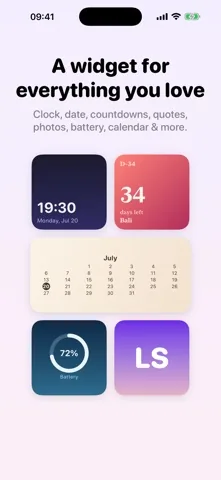
Three ways to read the same date
Every countdown carries a title you write, and Wallby renders it in whichever form fits the space.
- D-3434days left · Bali
Big number with caption
- WeddingD-DAYToday
D day badge
- Finalsin 12days
Plain phrase
- D+33days since launch
Counting up
The badge
D minus 34 before the day, D DAY on the day itself, D plus 3 after it. Short enough for a circular Lock Screen slot.
The phrase
Today, Tomorrow, Yesterday, "in 12 days" or "12 days ago". This is what the inline Lock Screen slot shows, because it is one line of text.
Where a countdown fits
| Placement | What you see |
|---|---|
| Home Screen, Small | The big number, the caption and your title |
| Home Screen, Medium and Large | The same, with room for a longer title and the theme background |
| Lock, Inline | One line above the clock, for example "Bali in 34 days" |
| Lock, Rectangular | Title and days left under the clock |
| Lock, Circular | The compact D day badge |
All twelve themes work on a countdown, and the six free themes are a complete set on their own. See aesthetic widgets for the palettes, or Lock Screen widgets for how the three slots behave.
Setting one up
- In Wallby, add a widget, choose Countdown and pick the size or Lock Screen shape you want.
- Type the title, for example "Bali" or "Finals", and pick the date.
- Choose a theme, then save it with a name you will recognise in the widget picker.
- Touch and hold the Home Screen or the Lock Screen, add a Wallby widget, then tap Edit Widget and choose your countdown by name.
A countdown does not need a network connection, a login or a subscription. It is date arithmetic and a theme, done on your iPhone.
What people actually count
Trips
The classic. A title, a date, an Ocean or Aurora theme, and the number on the Lock Screen so it is the first thing you see.
Exams and deadlines
Mono or Cream, rectangular slot, no decoration. The count up mode afterwards is oddly satisfying.
Birthdays and anniversaries
Set it once. It counts down, hits D DAY, then keeps counting up until you change the date next year.
Countdown questions
Does the countdown keep going after the date passes?
Yes. Once the date is behind you the badge flips from D minus to D plus and the caption changes to days since, so a countdown to a wedding quietly becomes a count of days married. You do not have to delete anything.
How does it count, exactly?
In whole calendar days, from the start of today to the start of the target day. The time of day is ignored, so a countdown does not tick over at some odd hour in the afternoon. Everything is computed on the device with the calendar iOS gives it.
Can I have more than one countdown?
Yes. Each countdown is a saved design with its own name, its own target date, its own title and its own theme, and you pick the one you want when you edit the placed widget.
Where does the countdown fit on the Lock Screen?
In all three slots, which no other Wallby widget manages: inline above the clock as a short phrase, rectangular under the clock as a title with days left, and circular as a compact D day badge.
Start the countdown
Free on the App Store, iOS 17.0 or later. The free version shows advertising and adds a small watermark; Wallby Pro removes both.