Lock Screen Widgets for iPhone
iOS gives you three widget slots around the Lock Screen clock, and each one has its own shape and its own rules. This page shows which Wallby widgets fit in which slot, and the exact taps that put them there.

Free on the App Store · iPhone, iOS 17.0 or later
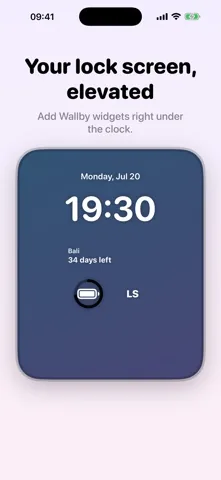
The three slots, and what fits in each
This table is the actual matrix Wallby uses. A widget type is offered for a slot only when it stays readable there.
| Slot | Shape and position | Wallby widgets offered |
|---|---|---|
| Inline | One line of text above the clock | Date, Countdown, Quote, Battery |
| Rectangular | Wide box under the clock, the roomiest of the three | Date, Countdown, Quote, Calendar, Battery, Clock |
| Circular | Small round slot under the clock, up to four across | Battery, Countdown, Monogram, Date |
Why the lists are short. iOS draws Lock Screen widgets in a single tinted style rather than in your theme's colors. Anything that depends on color, a photo above all, becomes unreadable there. Wallby leaves those combinations out rather than shipping something that looks broken on your own Lock Screen.
Adding one takes four taps
- Save the widget in Wallby and give it a name.
- Touch and hold your Lock Screen until Customize appears, and tap it. Tap Lock Screen.
- Tap the box under the time, find Wallby in the picker, and choose Inline, Rectangular or Circular.
- Tap Done, then touch and hold the placed widget and pick your saved design by name.
The naming step matters more on the Lock Screen than anywhere else: the slots are small, and picking "Bali countdown" from a list beats guessing which of four identical entries is the right one.
What each slot is actually good for
Inline, above the clock
One short line, always visible. A countdown phrase such as "in 12 days" or the date reads cleanly. A long quote does not.
Rectangular, under the clock
The only slot with room for a month view or a full quote. It also takes the clock itself if you want a second time style below the system one.
Circular, under the clock
Best as a set: a battery ring, a monogram and a countdown side by side. Each one is a glance, not a read.
The two widgets most people put there
Countdown
Days to a trip, an exam or a birthday, as a big number with a caption or as a D day badge. It fits all three slots, which no other Wallby widget manages. Detail on the countdown widget page.
Battery
Charge as a ring in a circular slot, or as a line inline. It reads the device level on the phone itself, with nothing sent anywhere.
If you want a photo on your screen, that is a Home Screen job: see the photo widget page. For the colors and fonts behind all of this, see aesthetic widgets for iPhone.
Lock Screen questions
How do I add a Lock Screen widget on iPhone?
Touch and hold your Lock Screen until Customize appears and tap it, then tap Lock Screen. Tap the box under the time to open the widget picker, find Wallby, and choose the shape you want. Tap Done, then touch and hold the placed widget and pick your saved design by name.
Why can I not put a photo on my Lock Screen widget?
Because iOS renders Lock Screen widgets in one tinted style rather than in full color. A photo in that slot turns into a grey smudge, so Wallby offers the photo widget in the three Home Screen sizes instead. That is a deliberate omission, not a missing feature.
Which Wallby widget is best under the clock?
The rectangular slot is the roomiest, so a countdown or a date reads well there. The circular slots suit the battery ring or a monogram, and the inline slot above the clock is a single line, which is where a short countdown phrase like "in 12 days" fits best.
Do Lock Screen widgets drain the battery?
Wallby's clock uses the system's own auto updating text rather than a refresh timer, so it does not spend a refresh budget just to stay current, and the countdown is plain date arithmetic done on the device. Nothing in a Wallby widget calls the network.
Fill the three slots tonight
Free on the App Store, iOS 17.0 or later. The free version shows advertising and adds a small watermark; Wallby Pro removes both.